Show real visitor IPs in nginx behind Cloudflare, and what the FastCGI cache should bypass
Test record
- Tested on
- Our DigitalOcean droplet (1 vCPU, 1 GB, New York) behind Cloudflare, a separate test nginx on the same server, and a MacBook
- Versions
- Ubuntu 24.04.4, nginx 1.24.0, PHP 8.3.6 FPM, curl 8.7.1
Short answer
Add a set_real_ip_from line for each of Cloudflare's IP ranges (22 on 23 October 2026) plus real_ip_header CF-Connecting-IP, and nginx and WordPress see the visitor's address instead of Cloudflare's. For the FastCGI cache, skip POST requests, URLs with a query string, wp-admin, the login page, feeds, sitemaps, and visitors with a WordPress login, comment or post password cookie. Analytics cookies can stay cached.
On this page
To show real visitor IPs in nginx behind Cloudflare, trust Cloudflare’s IP ranges with set_real_ip_from and read the visitor’s address from the CF-Connecting-IP header. For the FastCGI cache, skip anything personal or still changing: POST requests, URLs with a query string, the admin and login pages, feeds and sitemaps, and any visitor carrying a WordPress login, comment or post password cookie. Our own WordPress server runs both. On the server itself, a cached page starts arriving in 10 ms, against about 150 ms when PHP has to build it.
How we tested: Rahul checked everything on 23 October 2026 on our DigitalOcean server, which serves this site. The live site was only read and requested, never changed. Anything that needed a config change ran in a separate copy of nginx on the same server, listening only on 127.0.0.1, so the real site was never reloaded.
Before you start
- WordPress on nginx with PHP-FPM, and the site already running through Cloudflare with the orange cloud on. We used Ubuntu 24.04, nginx 1.24.0 and PHP 8.3.
- SSH access with sudo. Every change here ends with
sudo nginx -t, which checks the config before you reload, so a typo gets caught before it reaches the site.
It costs nothing. Both features are built into the nginx that Ubuntu ships.
Why nginx logs Cloudflare’s IP instead of the visitor’s
With the orange cloud on, every visitor connects to Cloudflare, and Cloudflare opens its own connection to your server. So the address nginx sees belongs to a Cloudflare server. In our test copy of nginx with no real IP settings, the log showed the connecting address and ignored the visitor’s address sitting in the header.
WordPress inherits it too. It reads the address from PHP’s REMOTE_ADDR, so comment spam checks, login limits and security plugins all end up looking at a handful of Cloudflare addresses. Tools such as fail2ban can even ban Cloudflare itself, which ends in Error 522. Our guide on letting only Cloudflare reach your droplet, and fixing Error 522 covers that side.
How to show the real visitor IP in nginx behind Cloudflare
1. Write Cloudflare’s ranges into one file
This downloads Cloudflare’s published lists and writes one set_real_ip_from line per range, then the line that names the header. Ubuntu’s nginx loads /etc/nginx/conf.d/ inside its http block, so the file works for every site on the server.
{
  for net in $(curl -fsS https://www.cloudflare.com/ips-v4) $(curl -fsS https://www.cloudflare.com/ips-v6); do
    echo "set_real_ip_from $net;"
  done
  echo "real_ip_header CF-Connecting-IP;"
} | sudo tee /etc/nginx/conf.d/cloudflare-realip.conf
wc -l /etc/nginx/conf.d/cloudflare-realip.conf
On 23 October 2026 the file came out at 23 lines: 15 IPv4 ranges, 7 IPv6 ranges and the header line. We generated it on our server and compared it with the file the site already runs on, and the directives were identical. If you get far fewer lines, a download failed. Run it again before you go any further.
2. Check the config and reload
sudo nginx -t && sudo systemctl reload nginxIf nginx -t reports that real_ip_header is a duplicate, an older copy is set somewhere else. grep -rn real_ip /etc/nginx/ shows where, and you can delete one of them.
3. Check your own visit is logged with your IP
Ask Cloudflare which address it sees for you, then make a request with a tag you can search for, and look for it in nginx’s log. Run the first two lines on your own computer and the last one on the server, with your domain in place of example.com:
curl -s https://example.com/cdn-cgi/trace | grep ip=
curl -s -o /dev/null "https://example.com/robots.txt?ip-check-123"
sudo grep "ip-check-123" /var/log/nginx/access.log
The log line should start with the same address the first command printed. Ours did. Your log may have another name if your site sets its own access_log.
WordPress gets the real IP too, without a plugin
nginx hands the restored address to PHP as REMOTE_ADDR, through the fastcgi_params file Ubuntu includes. In our test, a request carrying the visitor address 203.0.113.77 showed REMOTE_ADDR=203.0.113.77 in PHP, which is where WordPress and its plugins look.
Why only Cloudflare’s ranges belong in set_real_ip_from
The header is just text, and anyone can send a request with CF-Connecting-IP set to whatever they like. nginx only believes it when the connection comes from an address in your set_real_ip_from list. We sent the same faked header from an address outside the list, and nginx ignored it and logged the real connecting address.
Never use set_real_ip_from 0.0.0.0/0 to save time. That trusts every address on the internet, so anyone who reaches your server directly could choose the IP your logs and WordPress record for them.
Log which Cloudflare server passed the request on
Once the real IP replaces the connecting address, nginx still keeps the original in $realip_remote_addr. Logging both helps when you’re chasing a Cloudflare problem. In our test the log showed 203.0.113.77 for the visitor and the connecting address beside it. Add a format in the http block, in a file of its own such as /etc/nginx/conf.d/log-cloudflare.conf. Keep it out of cloudflare-realip.conf, because running the command in step 1 again replaces that file.
log_format cloudflare '$remote_addr via $realip_remote_addr [$time_local] "$request" $status $body_bytes_sent "$http_user_agent"';Then use it in your site’s server block with access_log /var/log/nginx/access.log cloudflare;.
Does Cloudflare cache your WordPress pages?
Not on its default settings. Cloudflare caches images, CSS and scripts, but it passes HTML pages through to your server. Every page we requested came back with cf-cache-status: DYNAMIC, which means Cloudflare didn’t treat it as cacheable. So unless you’ve added a cache rule for HTML at Cloudflare, the page cache that matters is the one on your own server.
Through Cloudflare, from Rahul’s Mac, the first request for a page took 0.99 seconds to start arriving. The next two, served from the nginx cache, took 0.49 and 0.47 seconds. Most of what’s left is the trip across the internet.
How to set up the nginx FastCGI cache for WordPress
1. Create the cache
These two lines go in the http block, for example in /etc/nginx/conf.d/fastcgi-cache.conf. They’re the settings our site runs, with the names changed:
fastcgi_cache_path /var/cache/nginx/wordpress levels=1:2 keys_zone=wordpress:100m max_size=512m inactive=60m use_temp_path=off;
fastcgi_cache_key "$scheme$request_method$host$request_uri";
The cached pages live in /var/cache/nginx/wordpress, capped at 512 MB, and a page nobody asks for in 60 minutes gets removed. The key decides what counts as the same page. Here it’s the scheme, the method, the domain and the full address, including any query string.
2. Decide what skips the cache
Put this in your site’s server block, outside any location. Each line sets $skip_cache to 1 for a request that must go to WordPress every time. The next section explains each one.
set $skip_cache 0;
if ($request_method = POST) { set $skip_cache 1; }
if ($query_string != "") { set $skip_cache 1; }
if ($request_uri ~* "/wp-admin/|/wp-login.php|/xmlrpc.php|/wp-.*.php|/feed/|sitemap(.*)\.xml") { set $skip_cache 1; }
if ($http_cookie ~* "comment_author|wordpress_[a-f0-9]+|wp-postpass|wordpress_no_cache|wordpress_logged_in") { set $skip_cache 1; }
3. Turn the cache on for PHP
Add these lines inside the location ~ \.php$ block that already passes requests to PHP-FPM. Keep its existing lines as they are.
fastcgi_cache wordpress;
fastcgi_cache_valid 200 301 302 60m;
fastcgi_cache_use_stale error timeout updating invalid_header http_500;
fastcgi_cache_lock on;
fastcgi_cache_bypass $skip_cache;
fastcgi_no_cache $skip_cache;
include snippets/security-headers.conf;
add_header X-FastCGI-Cache $upstream_cache_status;
Pages and redirects stay cached for 60 minutes. If PHP errors or times out, nginx sends the last good copy instead of an error page, and when a page isn’t cached yet, one request builds it while the others wait. The last line adds a header that tells you whether each response came from the cache. The include line above it brings back the security headers our site keeps in snippets/security-headers.conf. Point it at your own file, or see the section on the add_header trap below if your headers live somewhere else.
Then run sudo nginx -t && sudo systemctl reload nginx.
What should the FastCGI cache bypass?
Anything that is different for each visitor, or that changes when someone acts on it. Here’s what each rule in step 2 protects:
- POST requests are comments, logins and form submissions. nginx already leaves them out unless you change
fastcgi_cache_methods, so this line is a second lock on the same door. - Any query string covers searches (
?s=), post previews and plugin actions. It also catches tracking tags such as?utm_source=newsletter, which is the price of keeping the rule simple. That link skipped the cache on our server and took 148 ms instead of 10. - The address rule keeps out the dashboard, the login page, xmlrpc.php, other
wp-*.phpfiles such as wp-cron.php, feeds and sitemaps, which should always be current. - The cookie rule catches visitors WordPress knows about. Logged-in users carry
wordpress_logged_in_…, commenters carrycomment_author_…so they can see their own comment waiting for approval, andwp-postpass_…is the cookie that opens a password-protected post.
Weed out the login cookies, keep the analytics ones
Match the WordPress cookies by name, as the rule above does. A rule that skips the cache whenever any cookie is present would switch it off for nearly everyone, because almost every visitor carries an analytics cookie. On our server a request with a Google Analytics _ga cookie was still a HIT at 9 ms. One with a logged-in cookie skipped the cache at 155 ms, and one with a commenter cookie at 131 ms.
nginx won’t cache a page that sets a cookie
There’s a safety net behind these rules. By default nginx won’t store a response that sets a cookie or says Cache-Control: no-store or private. In our test copy of nginx, a page that set a cookie and a page that sent WordPress’s usual no-cache header both stayed a MISS on every request, while a plain page turned into a HIT on the second.
That’s how our login page stays out of the cache, even though a plugin has moved it to an address the rules above don’t list. WordPress sends it with a no-cache header and a test cookie, and it came back as a MISS twice in a row. Don’t treat the net as a reason to skip the rules, though. Plenty of plugins print personal content without sending those headers.
The add_header trap that drops your security headers
nginx only passes add_header lines down from the server block to a location that has none of its own. The moment you add X-FastCGI-Cache inside the PHP location, every security header set at server level disappears from your pages, quietly.
We checked with two copies of the same location. The one that added only the cache header sent 0 of our 6 security headers. The one that included the security headers again sent all 6. That’s why step 3 repeats the include. If you set your headers directly in the server block instead of a snippet, copy those lines into the location.
Check the cache works
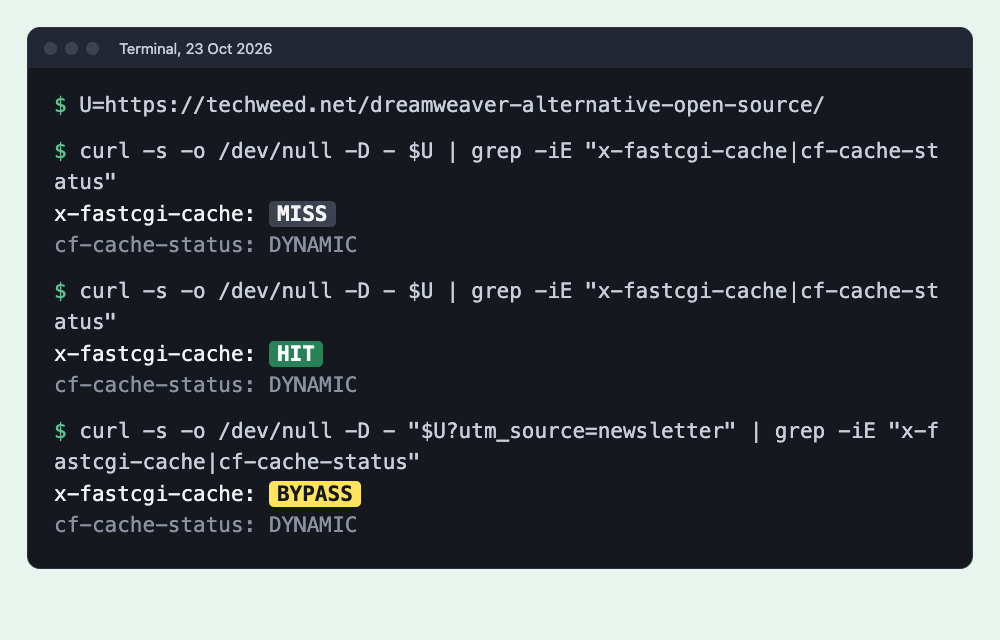
Request the same page twice, then once with a tracking tag:
U=https://example.com/a-post/
curl -s -o /dev/null -D - $U | grep -iE "x-fastcgi-cache|cf-cache-status"
curl -s -o /dev/null -D - $U | grep -iE "x-fastcgi-cache|cf-cache-status"
curl -s -o /dev/null -D - "$U?utm_source=newsletter" | grep -iE "x-fastcgi-cache|cf-cache-status"
You want MISS, then HIT, then BYPASS, as in our run above. A page that’s already cached starts at HIT. Then log in to WordPress, open any post with your browser’s developer tools on the Network tab, and click the page itself in the list. Its response headers should say BYPASS. If you see HIT, the cookie rule isn’t matching your login cookie.
How to clear the FastCGI cache when you update a post
Nothing in the setup above clears a page when it changes. When you edit a post, visitors keep getting the old copy until it’s 60 minutes old, and our own site has that gap today. Our nginx, from Ubuntu’s standard package, has no purge module. Each cached page is a single file, though, so you can delete it.
Clear one page
Each file is named after the MD5 hash of the page’s cache key, and levels=1:2 puts it in a folder named after the hash’s last character, inside one named after the two before it. With the key format from step 1, a post at https://example.com/a-post/ has the key httpsGETexample.com/a-post/:
KEY="httpsGETexample.com/a-post/"
H=$(printf "%s" "$KEY" | md5sum | cut -d" " -f1)
F="/var/cache/nginx/wordpress/$(echo $H | cut -c32)/$(echo $H | cut -c30-31)/$H"
sudo grep -a -m1 "^KEY:" "$F"
sudo rm -f "$F"
The grep line prints the key stored inside the file, so you can see it’s the right page before deleting it. We found one of our live posts this way without touching it. In our test copy of nginx, deleting the file made that page a MISS on the next request while the other cached page stayed a HIT. The key has to match exactly, trailing slash included, and it starts with http instead of https if Cloudflare reaches your server over plain HTTP.
Clear everything
sudo find /var/cache/nginx/wordpress -mindepth 1 -deleteThis empties the folder and leaves the folder itself in place for nginx. In our test both cached pages came back as a MISS afterwards, and no reload was needed.
Or let a plugin clear it when you publish
Nginx Helper (version 2.4.1, over 200,000 active installs) clears the cache when a post is edited or a comment is approved, and since version 1.8.8 it can purge without the nginx purge module. Its “purge all” button empties the cache folder, which defaults to /var/run/nginx-cache/. Point it at your real folder by defining RT_WP_NGINX_HELPER_CACHE_PATH in wp-config.php. We haven’t installed it on our own site yet, so this part is untested.
Undo
For the real IP, delete /etc/nginx/conf.d/cloudflare-realip.conf, then run sudo nginx -t && sudo systemctl reload nginx. Your logs go back to showing Cloudflare’s addresses.
For the cache, remove the lines from step 3 except the include, reload the same way, and clear the folder with the command above. The lines from steps 1 and 2 are harmless once the location stops using the cache, so they can stay or go.
Sources
- nginx real IP module and Cloudflare docs on restoring visitor IPs
- Cloudflare IP ranges
- nginx FastCGI module (cache path, key, stale copies, the lock, and which responses aren’t cached)
- nginx headers module (how
add_headeris inherited) - Cloudflare’s default cache behaviour and what cf-cache-status values mean
- Nginx Helper on WordPress.org
- Our test log from 23 October 2026 (the live checks, the timing runs and the four test setups), kept with this guide
Changelog
23 Oct 2026: first published, after testing on our own server.