ERR_EMPTY_RESPONSE on nginx and WordPress: what sends nothing back, and how to fix it
Test record
- Tested on
- A separate test nginx on our DigitalOcean droplet (Ubuntu 24.04) with PHP-FPM, opened in Chrome on a MacBook
- Versions
- nginx 1.24.0, PHP 8.3.6-FPM, Chrome 155.0.8059.85 on macOS 27.0.1, curl 8.5.0
Short answer
ERR_EMPTY_RESPONSE means the connection closed before the server sent a single byte. PHP and WordPress errors don't cause it: in our tests they always came back as 500, 502 or 504 pages. On nginx, look for a rule that returns 444 (bot blocks, login rate limits, a catch-all for unknown hostnames) or a restart during a long request. If only you see it, switch off any VPN, proxy or security app and try again.
On this page
ERR_EMPTY_RESPONSE means the server took your request and closed the connection without sending back a single byte. There’s no status code, no error page, nothing. We weeded through nine setups on our own nginx and PHP-FPM server to find what actually sends nothing back. The answer surprised us: PHP and WordPress never did.
What you’ll see
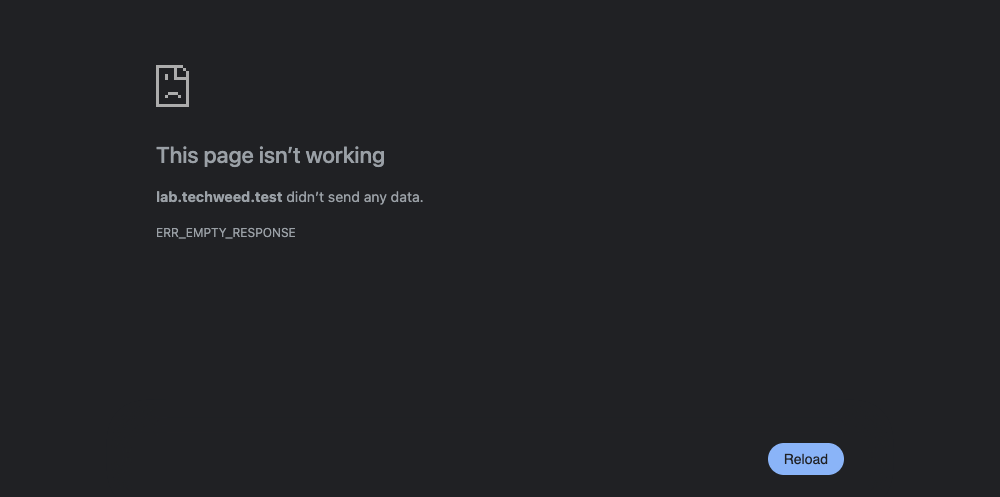
Chrome shows a grey page that says This page isn’t working, then example.com didn’t send any data, and under that the code ERR_EMPTY_RESPONSE.
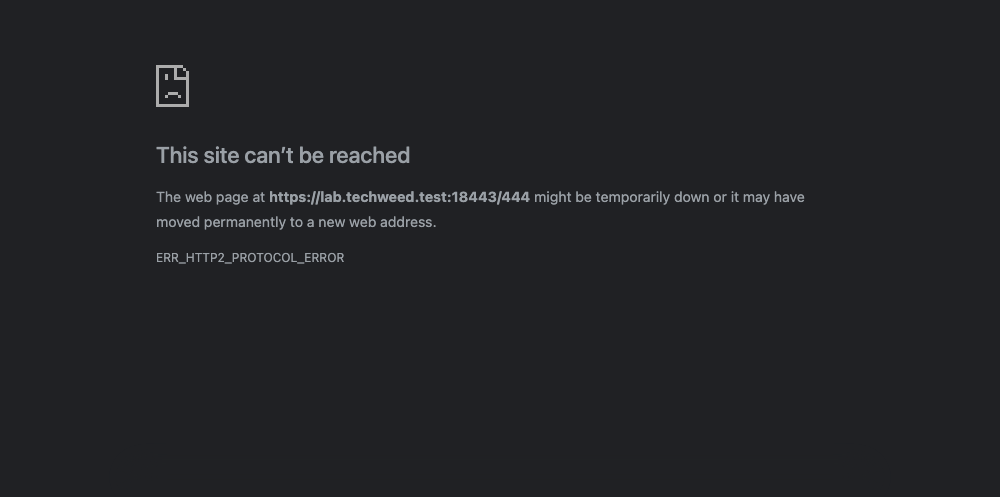
On an HTTPS site that uses HTTP/2, which is most of them, the same server problem looks different: This site can’t be reached with ERR_HTTP2_PROTOCOL_ERROR. If that’s what you have, this guide still applies.
What the error means
Chrome’s own definition is short: the server closed the connection without sending any data. That’s different from a server error like 500 or 502, where the server does answer, just with bad news. It’s also different from a blank white page, which is a normal answer with nothing in it.
If the site sits behind Cloudflare’s proxy (the orange cloud), visitors don’t see this code when the server sends nothing. According to Cloudflare’s docs, they get its Error 520 page instead, which Cloudflare says covers “empty” responses. That changes where to look. On a site behind Cloudflare, ERR_EMPTY_RESPONSE means you should check your own connection first.
How we reproduced it
Rahul ran these tests on 22 October 2026. He set up a separate nginx 1.24 instance on our DigitalOcean server (Ubuntu 24.04), connected to PHP 8.3-FPM, and opened each case in Chrome 155 on his Mac. Our live site wasn’t touched.
These setups sent nothing back:
- An nginx rule that returns 444 gave
ERR_EMPTY_RESPONSEover plain HTTP, andERR_HTTP2_PROTOCOL_ERRORover HTTPS with HTTP/2. - A hostname nginx didn’t recognise gave
ERR_EMPTY_RESPONSEtoo. We used the www version of a name that only listed the bare domain, and a “refuse unknown hosts” rule caught it with a 444. - A login rate limit set to answer 444 let the first request load. The next one, inside the limit, showed
ERR_EMPTY_RESPONSE. - Restarting nginx in the middle of a 10-second PHP request cut it off. We sent the same stop signals that Ubuntu’s restart sends, and the request got an empty reply after 7 seconds.
- A proxy between Chrome and the site that dropped the reply gave
ERR_EMPTY_RESPONSEfor both an http and an https site.
These sent a real error instead:
- A PHP fatal error gave
HTTP ERROR 500. - A PHP-FPM worker killed mid-request, or a missing PHP-FPM socket, gave 502 Bad Gateway.
- PHP running longer than nginx’s
fastcgi_read_timeoutgave 504 Gateway Time-out. - PHP exiting without printing anything gave a blank white page, with no error at all.
So on nginx with PHP-FPM, an empty reply isn’t a WordPress problem. nginx sent nothing because a rule told it to, because it was stopped mid-request, or because something between you and the server cut the reply off.
Which fix applies to you
- If only you see it, and the site loads on your phone over mobile data or for a friend, go to Fixes on your side.
- If everyone sees it and it’s your site, go to Fixes for site owners on nginx.
- If it comes and goes, often after a few quick reloads or logins, it’s usually a rate limit. See owner step 2.
- If it happened during a plugin update, import or backup, right when the server was restarted, see owner step 3.
Fixes on your side
1. Turn off anything that sits in the middle
A VPN, a proxy, a VPN browser extension, or an antivirus “web shield” all pass your traffic through themselves. If one of them drops the reply, you get exactly this error. In our test, a proxy that dropped replies gave ERR_EMPTY_RESPONSE for every site we tried. Switch each one off, reload the page, then switch it back on.
To check for a proxy you didn’t set up, open chrome://settings/system and click Open your computer’s proxy settings. On a home connection, no proxy should be on.
2. Try another network
Load the page on your phone with Wi-Fi off. If it works there, the problem is somewhere on your network (a work firewall, the router, or a filtering service), not on the site. If it fails there too, it’s the site, and only its owner can fix it.
Fixes for site owners on nginx
These steps assume nginx in front of PHP-FPM, as on most self-managed WordPress servers. Run the commands on the server. Replace example.com with your domain.
1. Reproduce it from the server itself
This skips Cloudflare and the browser and asks nginx directly:
curl -sS -o /dev/null -w "%{http_version} %{http_code}\n" --resolve example.com:443:127.0.0.1 -k https://example.com/A healthy site prints the HTTP version and a status, like ours did: 2 200. These are the two answers that mean “nothing came back”:
curl: (52) Empty reply from server
curl: (92) HTTP/2 stream 1 was not closed cleanly: PROTOCOL_ERROR (err 1)
If you get a normal status here but visitors still see the error, nginx isn’t the cause. Look at whatever sits between them and the server.
2. Find the rule that returns 444
nginx’s return 444 is documented as closing the connection without sending anything. It’s popular in security snippets: blocking bad bots, refusing unknown hostnames, rate-limiting logins. Search your whole loaded config for it:
sudo nginx -T 2>/dev/null | grep -n "444"nginx writes these drops to the access log with status 444, so you can see which address and which visitor got cut off. First find your site’s log file, then list the drops:
sudo nginx -T 2>/dev/null | grep -n "access_log"
sudo awk '$9 == 444' /var/log/nginx/example.access.log | tail -5
One thing to know when you read the log: a single visit in Chrome showed up as five 444 lines in ours, because Chrome tried again on its own. Then fix whichever rule it was:
- For a catch-all for unknown hostnames (
default_serverwithreturn 444), add the missing name, often the www version, to theserver_nameline of your real site. - For a rate limit (
limit_req_status 444), change it tolimit_req_status 429;, so people who trip it get a “too many requests” page instead of a mystery error. You can also raiseburst. - For a bot or country block, use the user agents in the log lines above to check that it isn’t catching real visitors.
Then test the config and apply it without dropping anyone:
sudo nginx -t && sudo systemctl reload nginxA rate limit placed next to a return in the same location never fires. nginx runs return first, before it gets to limit_req. We found this out when our first rate-limit test let every request through.
3. Reload nginx, don’t restart it
On Ubuntu, systemctl restart nginx asks nginx to stop gracefully, waits 5 seconds, then forces it. Any request still running after those 5 seconds gets an empty reply. In our test, a 10-second PHP request was cut off after 7 seconds on restart, and it left no line in the access log at all. The same request finished normally when we used reload.
For config changes, always use sudo systemctl reload nginx. If you must restart, do it when no long jobs are running, like imports, backups or bulk plugin updates.
4. Check whether nginx itself crashed
If an nginx worker process crashes, its open connections close with nothing sent. nginx records this in its error log:
sudo grep "exited on signal" /var/log/nginx/*error.logOurs had no matches. If yours does, update nginx and remove any third-party modules, one at a time, until the crashes stop. We didn’t reproduce a crash for this guide.
5. Behind Cloudflare? Look for Error 520 instead
With the orange cloud on, an empty reply from your server reaches visitors as Cloudflare’s Error 520. The steps above still find the cause. Cloudflare also suggests checking your server’s error logs for crashes, and checking that your server handles HTTP/2 properly if you’ve turned on HTTP/2 to Origin. We couldn’t test this path because our staging site sits behind a login, so this part comes from Cloudflare’s docs.
Check it’s fixed
- The curl command from owner step 1 prints a status such as
2 200, not error 52 or 92. - Run the
awkcommand again after a few minutes. No new 444 lines should appear for real visitors. - The page loads in Chrome, and on a second network such as your phone on mobile data.
Undo
Before you edit an nginx file, copy it, so you can put it back:
sudo cp /etc/nginx/sites-available/example /root/example.nginx.bak
# to undo:
sudo cp /root/example.nginx.bak /etc/nginx/sites-available/example
sudo nginx -t && sudo systemctl reload nginx
On your own device, switch the VPN, proxy or security app back on.
What didn’t work
Hunting in PHP-FPM settings and WordPress plugins. Every PHP failure we caused came back as a 500, 502 or 504, or a blank page. None of them gave an empty reply. If you see one of those codes instead, you’re dealing with a different problem.
Using systemctl restart to apply a fix. It can cause the very error you’re fixing, for anyone in the middle of a slow request.
The older version of this guide suggested clearing browsing data, resetting network settings with ipconfig and netsh, and buying a driver-updater app. We didn’t re-run those, and removed them, because none of them changes whether the server sends a reply.
Related errors
ERR_HTTP2_PROTOCOL_ERRORis the HTTP/2 version of this problem. Our 444 rule over HTTPS showed it, and the same fixes apply.- Cloudflare’s Error 520 is what visitors see when the server behind Cloudflare sends nothing.
- A 502 Bad Gateway or 504 Gateway Time-out means PHP-FPM crashed, is missing, or is too slow. nginx is still answering, so it’s not this error.
- A blank white page means the server answered with nothing in it, usually because PHP stopped early. Check the PHP error log, not nginx.
DNS_PROBE_FINISHED_NXDOMAINmeans Chrome couldn’t even find the server’s address. See our NXDOMAIN guide.
Sources
- Chromium source, net_error_list.h: EMPTY_RESPONSE is “The server closed the connection without sending any data”
- nginx docs: return (code 444) and controlling nginx (graceful vs fast shutdown, reload)
- nginx development guide, request phases: rewrite runs before limit_req
- Cloudflare docs: Error 520
- curl docs: error codes 52 (got nothing) and 92 (HTTP/2 stream error)
- Ubuntu 24.04’s nginx service file, which stops nginx with QUIT, then forces it after 5 seconds
- Our test log from 22 October 2026 (every command, its raw output, nginx’s own logs and the Chrome screenshots), kept with this guide
Changelog
22 Oct 2026: rewritten from scratch after testing on nginx 1.24, PHP 8.3-FPM and Chrome 155. It now covers site owners on nginx as well as visitors. Removed the 2018 advice (clearing browsing data, network resets, a paid driver updater), because none of it changes whether a server replies. First published 10 Mar 2018.