Make a DigitalOcean droplet accept web traffic only from Cloudflare, and fix Error 522
Test record
- Tested on
- Our DigitalOcean droplet (1 vCPU, 1 GB, New York) behind Cloudflare, checked from a MacBook
- Versions
- Ubuntu 24.04.4, ufw 0.36.2, nginx 1.24.0, fail2ban, Chrome 155.0.8059.85
Short answer
Use ufw to allow ports 80 and 443 only from Cloudflare's published IP ranges (22 of them on 23 October 2026), keep SSH open for yourself, and deny everything else. Your site then only loads through Cloudflare. If you get Error 522 afterwards, Cloudflare can't reach your server: a range is missing, the site uses a port you didn't open, or a tool like fail2ban is banning Cloudflare's own addresses.
On this page
To make a DigitalOcean droplet accept web traffic only from Cloudflare, let its firewall allow ports 80 and 443 from Cloudflare’s published IP ranges and nothing else. Our own server runs exactly this: 22 Cloudflare ranges allowed in, every other address left hanging. The catch is Error 522, which Cloudflare shows when it can’t reach your server, so the second half of this page covers what causes it after a lockdown. Weed out the web traffic that tries to skip Cloudflare, without locking Cloudflare out too.
What you end up with
Visitors reach your site through Cloudflare as before. Anyone who finds your server’s IP address and tries to load the site directly gets no answer at all. When we tried that from a laptop, the connection never opened and curl gave up after the 10 seconds we allowed it. SSH stays open, so you can still log in.
How we tested: Rahul checked every step on 23 October 2026 on our own DigitalOcean server, which already runs this setup. Nothing was changed for the tests. We read the firewall, requested our own site, and ran each setup command with ufw’s --dry-run option, which shows what a command would do without doing it.
Before you start
- You need an Ubuntu droplet with ufw, Ubuntu’s firewall tool. We used Ubuntu 24.04 with ufw 0.36.2.
- Your site should already run through Cloudflare, with the orange cloud on its DNS records.
- Keep a second SSH session open the whole time, so one wrong command can’t lock you out.
It costs nothing. Everything here uses tools already on the server.
How to allow only Cloudflare IPs on your droplet
1. Allow SSH first
Do this before anything else. If you switch the firewall on without it, your own login is blocked along with everything else.
sudo ufw allow 22/tcp2. Block everything else by default
sudo ufw default deny incoming
sudo ufw default allow outgoing
“Deny” makes ufw drop unwanted connections silently, so whoever is knocking just waits. That detail matters later for Error 522.
3. Allow web traffic only from Cloudflare
Cloudflare publishes its address ranges at cloudflare.com/ips. This loop downloads both lists and adds one rule per range for ports 80 and 443:
for net in $(curl -fsS https://www.cloudflare.com/ips-v4) $(curl -fsS https://www.cloudflare.com/ips-v6); do
  sudo ufw allow proto tcp from "$net" to any port 80,443 comment Cloudflare
done
On 23 October 2026 the lists held 15 IPv4 and 7 IPv6 ranges. Run with --dry-run on our server, the loop reported “Skipping adding existing rule” for all 22, which means our live rules are exactly what it creates.
4. Remove any rule that opens 80 or 443 to everyone
An older rule such as “Nginx Full”, “Apache Full” or 80/tcp ALLOW Anywhere would undo the lockdown. List the rules with numbers and delete any of those:
sudo ufw status numbered
sudo ufw delete NUMBER
5. Switch the firewall on
sudo ufw enable
sudo ufw status verbose
The status should show the default policy and a list of Cloudflare rules, like ours:
Default: deny (incoming), allow (outgoing), disabled (routed)
22/tcp                     ALLOW IN    Anywhere
80,443/tcp                 ALLOW IN    173.245.48.0/20            # Cloudflare
80,443/tcp                 ALLOW IN    103.21.244.0/22            # Cloudflare
6. Give nginx the visitor’s real IP
Every request now arrives from a Cloudflare address, so your logs, rate limits and security tools would all see Cloudflare instead of the visitor. Cloudflare sends the visitor’s address in a header called CF-Connecting-IP, and nginx’s real IP module can put it back. Put one set_real_ip_from line per Cloudflare range, then the header line, in a file such as /etc/nginx/conf.d/cloudflare-realip.conf. Ubuntu’s nginx loads that folder inside its http block, and it’s where ours live:
set_real_ip_from 173.245.48.0/20;
set_real_ip_from 103.21.244.0/22;
# one line for each of the 22 ranges
real_ip_header CF-Connecting-IP;
Check and apply it with sudo nginx -t && sudo systemctl reload nginx. Our nginx lists the same 22 ranges as our firewall.
7. Keep the list up to date
Cloudflare says its ranges don’t change often, and that new ones are added to the published list before they go into use. If you never update, though, a new range will eventually show up as Error 522 for some visitors. Nothing on our server was checking for this, so we wrote a small script that compares the firewall with Cloudflare’s list. By default it only prints what it would change:
#!/bin/sh
# Keep ufw's port 80/443 allow rules in line with Cloudflare's published IP ranges.
# Usage: cf-ufw-sync.sh           dry run: prints what it would add or remove, changes nothing
#        cf-ufw-sync.sh --apply   makes the changes
set -eu
# cron starts jobs with PATH=/usr/bin:/bin, which doesn't include /usr/sbin, where ufw lives.
PATH=/usr/local/sbin:/usr/local/bin:/usr/sbin:/usr/bin:/sbin:/bin
export PATH
command -v ufw > /dev/null || { echo "ufw not found, nothing changed"; exit 1; }
apply=0
[ "${1:-}" = "--apply" ] && apply=1
tmp=$(mktemp -d)
trap 'rm -rf "$tmp"' EXIT

curl -fsS https://api.cloudflare.com/client/v4/ips \
  | python3 -c 'import json, sys; d = json.load(sys.stdin)["result"]; print("\n".join(d["ipv4_cidrs"] + d["ipv6_cidrs"]))' \
  | sort -u > "$tmp/want"
# A short or empty list means the download failed; never strip the firewall because of that.
[ "$(wc -l < "$tmp/want")" -ge 10 ] || { echo "Cloudflare's list looks wrong, nothing changed"; exit 1; }

ufw status | awk '$1 == "80,443/tcp" && $2 == "ALLOW" { print $3 }' | sort -u > "$tmp/have"

comm -23 "$tmp/want" "$tmp/have" | while read -r net; do
  echo "add    $net"
  if [ "$apply" = 1 ]; then ufw allow proto tcp from "$net" to any port 80,443 comment Cloudflare; fi
done
comm -13 "$tmp/want" "$tmp/have" | while read -r net; do
  echo "remove $net"
  if [ "$apply" = 1 ]; then ufw delete allow proto tcp from "$net" to any port 80,443; fi
done
echo "checked $(wc -l < "$tmp/want") Cloudflare ranges against $(wc -l < "$tmp/have") firewall rules"
We ran it three times on our server without --apply. Against the real firewall it found nothing to change. With a list we edited to look stale, it said it would add one range and remove one. With an empty download, it refused to touch anything and exited with an error, which is what you want from a script that runs unattended.
Our first version also failed in a way the dry runs didn’t show. Cron starts jobs with a short PATH of /usr/bin:/bin, and ufw lives in /usr/sbin, so under cron the script couldn’t find it at all. The PATH line at the top of the script fixes that. To test any cron job the way cron will run it, use env -i PATH=/usr/bin:/bin /bin/sh /usr/local/sbin/cf-ufw-sync.sh.
Once you trust it, save it as /usr/local/sbin/cf-ufw-sync.sh and run it weekly with --apply from cron:
echo '0 4 * * 1 root /bin/sh /usr/local/sbin/cf-ufw-sync.sh --apply >> /var/log/cf-ufw-sync.log 2>&1' | sudo tee /etc/cron.d/cf-ufw-syncIt only manages the firewall. If the ranges change, update nginx’s set_real_ip_from lines too.
Check it works
From your own computer, not the server, load the site through Cloudflare and then try the server’s IP directly. Replace 203.0.113.10 with your droplet’s address:
curl -s -o /dev/null -w "%{http_code}\n" https://example.com/
curl -sk -o /dev/null --connect-timeout 10 https://203.0.113.10/ ; echo "exit code $?"
Ours printed 200 for the site, in 0.6 seconds, and exit code 28 for the direct request, which is curl saying it timed out. If the direct request returns a web page, a rule from step 4 is still open.
Cloudflare Error 522 after restricting the firewall
Error 522 means Cloudflare couldn’t open a connection to your server. Its docs say it waits 19 seconds for your server to answer before giving up. Cloudflare calls a firewall blocking its addresses the most common cause, and right after a lockdown that’s the first place to look.
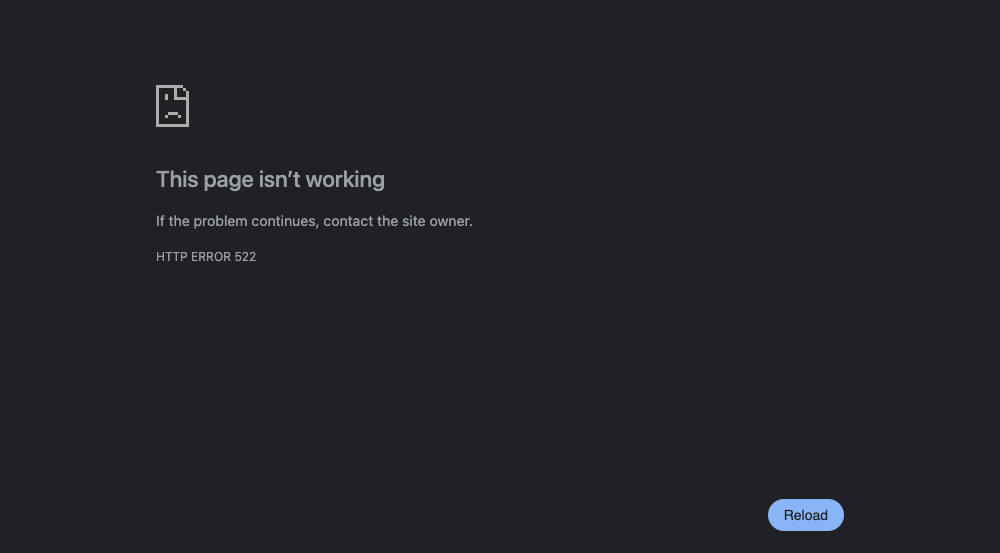
We caused a real one on our live site without changing anything. Cloudflare forwards port 8443 as well as 443, but our firewall lets Cloudflare in on 80 and 443 only. So when we requested https://techweed.net:8443/, Cloudflare tried our server on 8443, the firewall dropped it, and 19.8 seconds later we got a 522. Cloudflare sent the error with an empty page, so Chrome showed its own message. You may see Cloudflare’s branded error page instead.
1. A Cloudflare range is missing
Run the script from step 7 without --apply. Any line starting with add is a Cloudflare range your firewall doesn’t allow. Check IPv6 as well as IPv4, since both lists are part of Cloudflare’s network.
2. The site uses a port you didn’t open
This is the one we reproduced. Cloudflare forwards HTTPS on ports 443, 2053, 2083, 2087, 2096 and 8443, and HTTP on 80, 8080, 8880, 2052, 2082, 2086 and 2095. If your site or an app on it uses one of those other ports, either allow that port for the Cloudflare ranges too, or move it to 443.
3. Something on the server is banning Cloudflare
Tools like fail2ban read your web server’s log and ban the addresses they find in it. If nginx logs Cloudflare’s address instead of the visitor’s, the ban hits Cloudflare. We checked with fail2ban’s own test tool: given a log line without the visitor’s IP restored, our WordPress filter picked out 172.70.142.21, which sits inside Cloudflare’s 172.64.0.0/13 range. Look for bans and blocked ranges like this:
sudo ufw status | grep -E "REJECT|DENY"
sudo fail2ban-client status
If any banned address falls inside a Cloudflare range, remove that ban and set up step 6, so the tool sees real visitors from then on.
4. Cloudflare has the wrong address, or the server is struggling
Cloudflare’s docs list two more causes. One is an A record in Cloudflare’s DNS that no longer matches your droplet’s IP, for example after a rebuild. Compare it with the address in your DigitalOcean control panel. The other is a server so overloaded that it drops new connections.
What didn’t work
Blocking attackers in the firewall with fail2ban. Our WordPress jail reads nginx’s log, which holds the visitor’s real IP, and bans that IP in ufw. Behind Cloudflare, though, every web connection comes from a Cloudflare address, so those bans never match anyone. It had banned no one. Rate-limit in nginx instead, where the restored IP is visible, or use Cloudflare’s own rate-limiting rules.
Security notes
The lockdown stops direct visits to your website, but SSH is still reachable from anywhere. Keep it on key-based logins. And if your server’s IP has already leaked, a firewall alone isn’t the strongest option. Authenticated Origin Pulls and Cloudflare Tunnel go further, and we’ll cover both in their own guides.
Undo
To open the web ports to everyone again, run sudo ufw allow 80,443/tcp. The Cloudflare rules can stay, as they do no harm. sudo ufw disable switches the whole firewall off, SSH rule included, so use it only if you mean to.
Sources
- Cloudflare IP ranges and the IP list API
- Cloudflare docs on allowing its IP addresses (how often the list changes)
- Cloudflare docs on Error 522 (the 19-second wait and common causes)
- Cloudflare docs on network ports
- Cloudflare docs on restoring visitor IPs and the nginx real IP module
- Ubuntu Server docs on firewalls
- Our test log from 23 October 2026 (firewall state, list comparison, the 522 request, fail2ban checks and the dry runs), kept with this guide
Changelog
23 Oct 2026: first published, after checking every step on our own server.